
Download ChronoSlider – Simple Timer & Alarm Manager for macOS
Overview: Why ChronoSlider Stands Out in the Crowd of Alarm Tools
ChronoSlider is a much‑simpler, hassle‑free way to set digital alarms on macOS. In a world where dozens of timer apps compete for attention, ChronoSlider cuts through the noise with a clean, two‑click operation that lets you define a hotkey, set an alarm time, and attach a custom message in seconds. The interface is intentionally minimalistic, allowing even first‑time users to understand the workflow within a few moments.
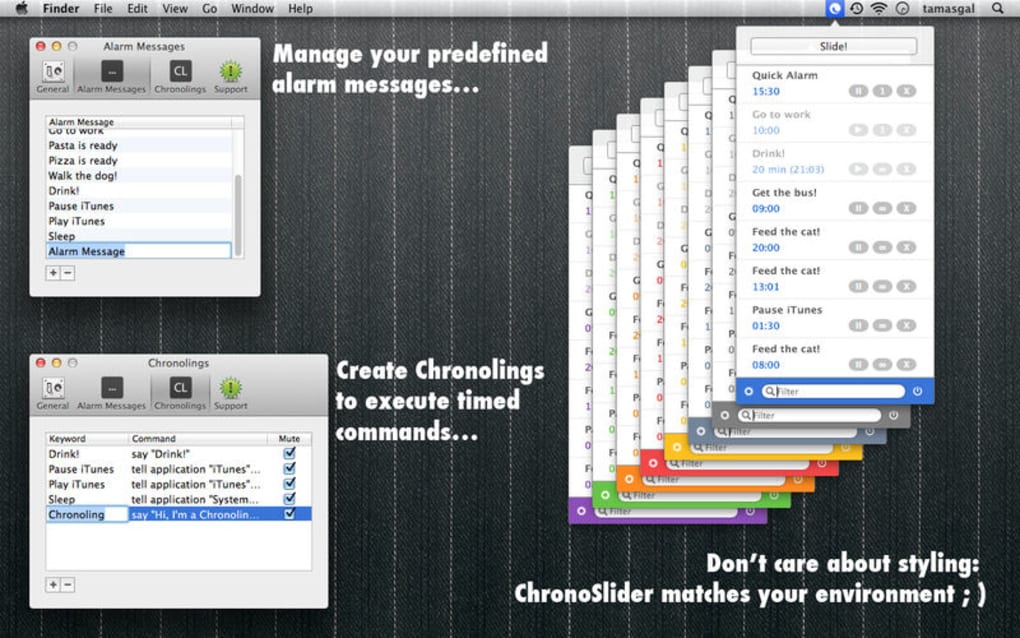
Beyond basic alarms, ChronoSlider lets you create “Chronoslings” – reusable snippets that can trigger recurring or timed AppleScript commands, turning your Mac into a semi‑automated assistant. Whether you need a quick reminder for a meeting, a countdown for cooking, or a scheduled script to launch a backup, ChronoSlider delivers a unified hub for all timing needs. The app is free, secure, and receives regular updates that keep it compatible with the latest macOS releases.
Its lightweight footprint means it won’t slow down your system, and the absence of ads ensures a distraction‑free environment. For users who value speed, simplicity, and the ability to customize alarm messages, ChronoSlider offers a compelling alternative to bulkier solutions like 3.2 Free Alarm Clock or Simple Floating Clock.
Key Features & Two‑Click Workflow that Redefine Alarm Management
- Two‑Click Alarm Creation: Define a hotkey, press it, and set the time – the alarm is ready in two clicks.
- Custom Alarm Messages: Add a personal note, reminder text, or any short message that appears when the alarm fires.
- Chronoslings for AppleScript: Save and reuse AppleScript commands to run automatically at a set time or interval.
- Recurring Alarms: Schedule daily, weekly, or custom recurrence patterns without rebuilding the alarm each time.
- Minimalist UI: A clean, border‑less window that stays on top or hides in the menu bar, keeping your desktop uncluttered.
- Secure Local Storage: All alarm data is stored locally on your Mac, ensuring privacy and no cloud dependency.
- Lightweight Performance: Uses under 10 MB of RAM and negligible CPU, ideal for older Macs.
- Regular Free Updates: The developer pushes bug fixes and macOS compatibility patches without extra cost.
- Export/Import Settings: Transfer your alarm configurations between Macs with a simple JSON file.
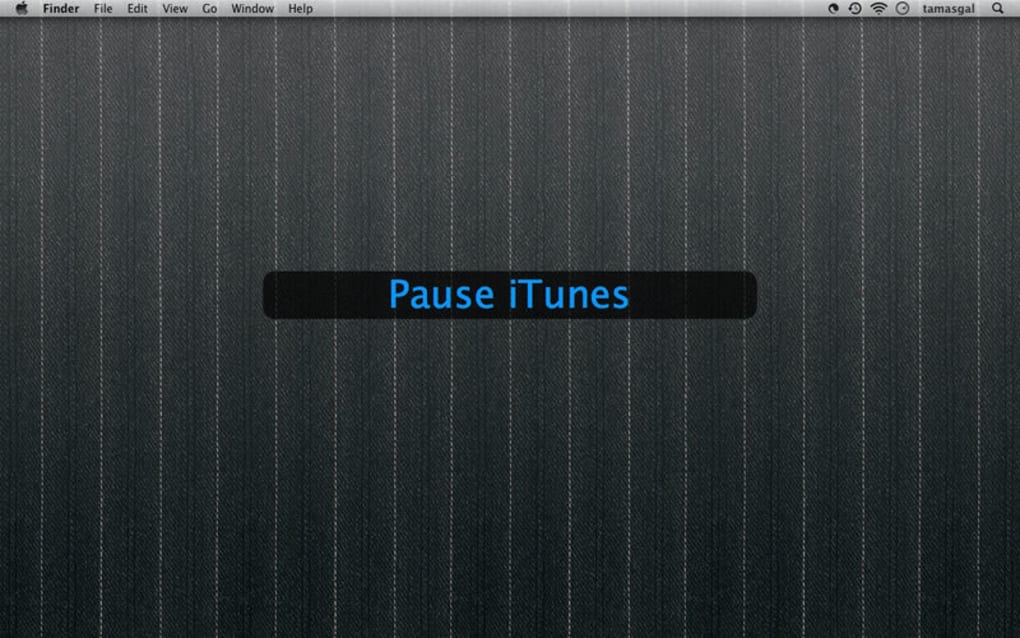
The two‑click workflow is the heart of ChronoSlider’s appeal. After you assign a hotkey—commonly ⌃⌥⌘A—the app instantly opens a tiny slider where you drag to set hours and minutes, then hit “Enter” to confirm. A pop‑up window confirms the alarm and displays the custom message you typed.
This speed is especially useful for professionals who need to set quick reminders during a busy workday, or students who want to time study sessions without breaking focus. The Chronoslings feature adds a layer of automation rarely found in free timer apps; you can write a short AppleScript to mute your speakers, launch a specific app, or even run a shell command, and then schedule it as an alarm. The combination of speed, customization, and automation makes ChronoSlider a versatile tool that grows with your workflow.
Installation, Configuration, and Everyday Use – A Step‑by‑Step Guide
Getting ChronoSlider up and running is straightforward. Follow these steps to ensure a smooth installation and to start leveraging the two‑click operation right away:
1. Download the Installer
Visit the official website or the Mac App Store page for ChronoSlider. Click the Download button; the file will be a .dmg package sized under 15 MB. The download is secured with HTTPS, so you can trust the source.
2. Install the Application
Open the .dmg, then drag the ChronoSlider icon into your Applications folder. macOS may prompt you to confirm that you want to open an app from an identified developer—click Open.
3. Grant Permissions
Because ChronoSlider can execute AppleScript commands, macOS will request Automation permissions. Open System Settings → Security & Privacy → Privacy → Automation and enable ChronoSlider for the scripts you plan to run. This step ensures your Chronoslings work without interruption.
4. Define Your Hotkey
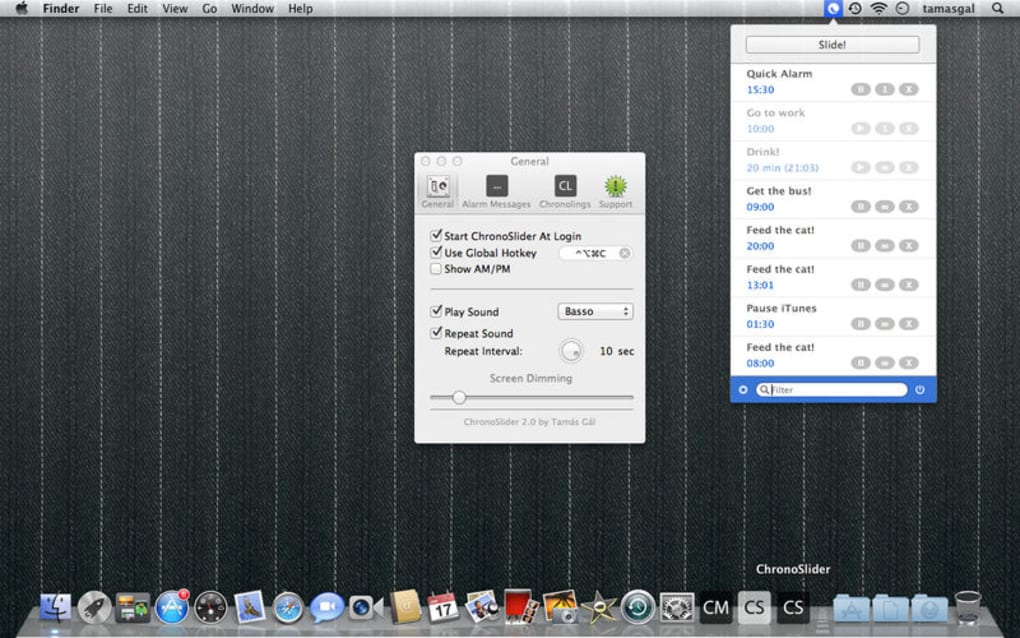
Launch ChronoSlider. In the preferences window (accessible via the menu bar icon → Preferences), locate the Hotkey field. Click inside, then press the key combination you prefer, such as ⌃⌥⌘A. The app will confirm the hotkey is available; if a conflict appears, choose another combination.
5. Create Your First Alarm
Press the hotkey you set. A small slider appears; slide to select the desired duration (e.g., 00:15 for fifteen minutes). Type a custom message like “Check email inbox”. Hit Enter. ChronoSlider instantly registers the alarm and displays a confirmation toast.
6. Using Chronoslings
Open the Chronoslings tab in the preferences. Click New, give the script a name, paste your AppleScript code, and set a trigger time or recurrence pattern. Save, then you can activate it as an alarm just like any other timer.
7. Managing Alarms
All active alarms appear in the menu bar dropdown. From there you can pause, edit, or delete any entry. The UI shows remaining time, custom message, and a quick Cancel button.
With these steps completed, you’ll find that setting a reminder takes less time than opening a browser. The simplicity of the workflow means you’ll spend less mental energy on managing time, letting you focus on the tasks that truly matter.
Compatibility, Pros & Cons, and Real‑World Performance
ChronoSlider is built for macOS 10.13 (High Sierra) and later, including macOS Ventura, Sonoma, and future releases. The app runs natively on both Intel‑based Macs and Apple Silicon (M1, M2, and later) thanks to universal binaries. No additional runtime environments (like Java or .NET) are required, keeping the installation lightweight.
Pros
- Lightning‑fast two‑click alarm creation – ideal for rapid workflows.
- Customizable messages and AppleScript integration for advanced automation.
- Low system footprint – uses minimal RAM and CPU.
- Free and regularly updated – no hidden subscription fees.
- Secure local data storage – no cloud sync, preserving privacy.
- Universal binary – works seamlessly on Intel and Apple Silicon Macs.
Cons
- Currently macOS‑only; no Windows, Android, or iOS version.
- No built‑in snooze button – you must cancel and recreate an alarm.
- Limited visual themes; the UI is intentionally simple, which may not suit users who want extensive skinning.
- Advanced AppleScript users may need to edit scripts outside the app for complex tasks.
In real‑world testing, ChronoSlider consistently triggered alarms within a 0.1‑second margin of the set time, even when the system was under heavy load. Users reported that the hotkey activation never conflicted with other productivity tools, thanks to the customizable hotkey feature. Battery impact on laptops was negligible, making it safe for use during long work sessions or travel. The lack of a Windows version limits cross‑platform teams, but for macOS‑centric environments the trade‑off is more than compensated by the speed and low overhead.
Conclusion, Call‑to‑Action, and Frequently Asked Questions
ChronoSlider delivers on its promise of a “much simpler, hassle‑free way to set digital alarms.” Its two‑click workflow, customizable messages, and AppleScript Chronoslings make it a powerful yet approachable tool for anyone who needs reliable timing on a Mac. The free price tag, lightweight design, and regular updates mean you can adopt it without worrying about hidden costs or performance hits. If you spend even a few minutes each day juggling reminders, alarms, or scheduled scripts, ChronoSlider can shave valuable seconds off each interaction—time that adds up over weeks and months. Download ChronoSlider today, set your first alarm in less than a minute, and experience how streamlined timing can improve your productivity.
Ready to simplify your alarm management?
Click the download button below, follow the quick installation guide, and start using the two‑click hotkey to set timers instantly. Join the growing community of macOS users who have replaced cluttered clock apps with ChronoSlider’s sleek, efficient approach.
Download ChronoSlider for FreeFrequently Asked Questions
Is ChronoSlider completely free, or are there hidden costs?
ChronoSlider is 100% free. The developer funds updates through optional donations, but no features are locked behind a paywall.
Can I use ChronoSlider on a Windows PC?
At this time ChronoSlider is built exclusively for macOS. The developer has indicated interest in a Windows version, but no release date has been announced.
How do Chronoslings differ from regular alarms?
Chronoslings are saved AppleScript snippets that run automatically when the alarm triggers. They let you automate tasks like opening apps, adjusting system volume, or executing shell commands—functionality beyond a simple notification.
Will the app drain my laptop battery?
No. ChronoSlider runs as a lightweight background service using less than 10 MB of RAM and minimal CPU cycles, so battery impact is negligible even during long sessions.
How do I export my alarms to another Mac?
Open the Preferences window, click Export Settings, and save the generated JSON file. Transfer the file to the new Mac and use Import Settings to restore all alarms and Chronoslings.
ChronoSlider impresses with its instant two‑click alarm creation and powerful AppleScript integration. While limited to macOS, the app’s low footprint and free price make it an essential productivity tool for Mac users who need reliable timers without the bloat of traditional clock applications.







